

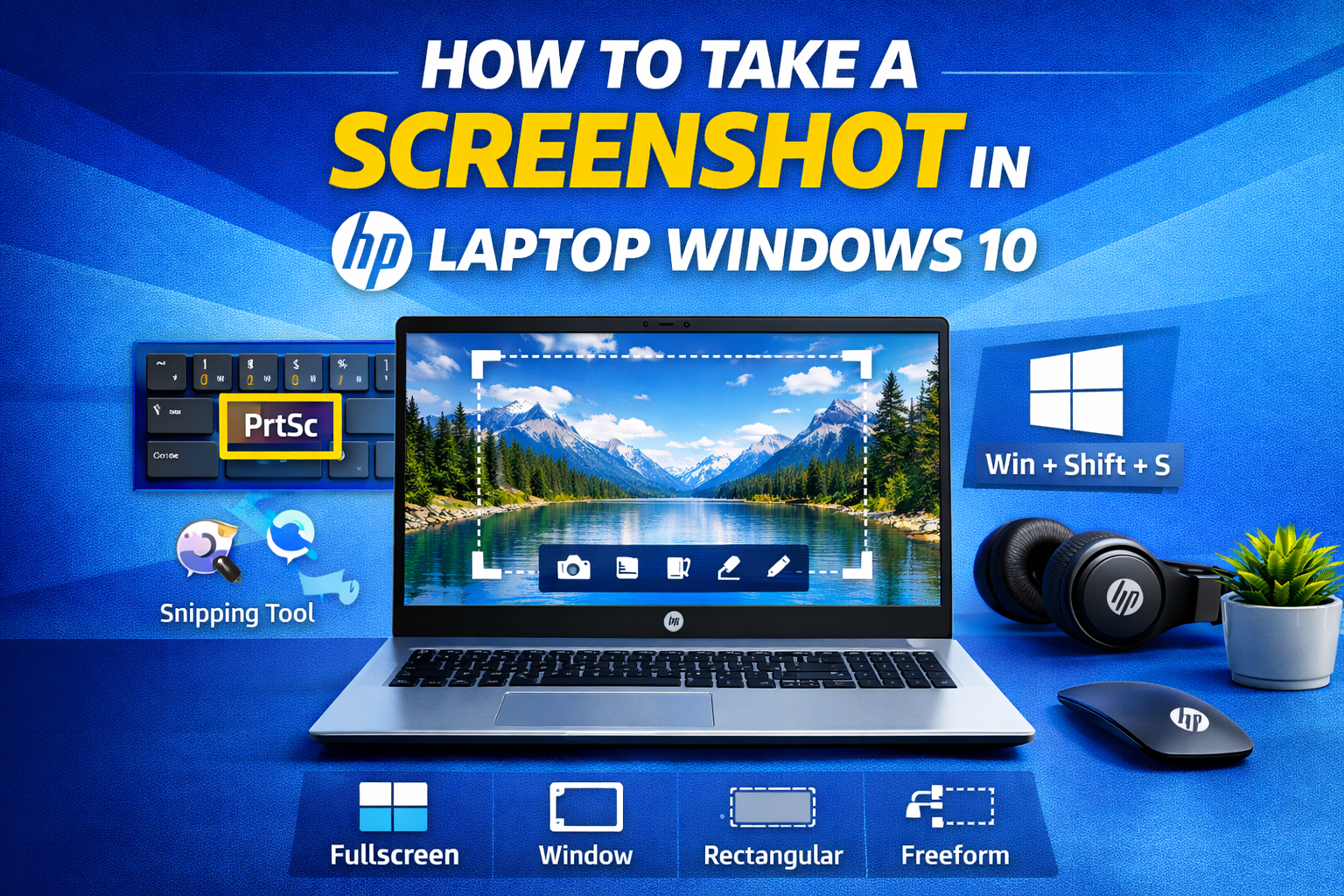
What does “taking a screenshot” mean on an HP laptop running Windows 10?
When you search “how to take screenshot in HP laptop Windows 10”, you’re really asking: “How do I save exactly what’s on my screen as a picture?” On a Windows 10 HP laptop or HP notebook PC, a screenshot is just a still image of whatever is currently visible on your display – like a digital photo of your screen.
It doesn’t record sound or movement (that’s screen recording) – it simply grabs a single, frozen moment you can save, share or paste into another app.
What exactly is a screenshot on a Windows 10 HP laptop?
On an HP laptop with Windows 10, a screenshot is:
- A static image capture of all or part of your screen at one point in time.
- Created using shortcuts such as PrtScn, Windows + PrtScn, Alt + PrtScn or Windows + Shift + S.
- Stored either in your clipboard (ready to paste with Ctrl + V) or as an image file (usually PNG) in a folder like Pictures → Screenshots.
So when you press a screenshot shortcut, Windows 10 “photographs” your HP laptop display and lets you use that image in documents, emails, chats or support tickets.
When might you want to take a screenshot on your HP laptop?
Screenshots are useful in all sorts of everyday situations, which is why “how to take screenshot in HP laptop” is such a common query:
- Saving proof and receipts
- Capture online order confirmations, booking references or account changes before you close the tab.
- Keep visual proof for refunds, expenses or reference later.
- Capturing error messages and glitches
- When something goes wrong, take a screenshot of the exact error on your HP notebook PC.
- Send it to IT or app support so they can see the problem without guesswork.
- Sharing content with others
- Grab part of a web page, a chart or a slide and paste it into Teams, WhatsApp Web, email or PowerPoint.
- Screenshots are faster than downloading or recreating content from scratch.
- Keeping copies of online content
- Save snippets of articles, social posts, dashboards or maps for research or revision.
- Building tutorials and “how-to” guides
- Combine several screenshots to show each step clearly in a guide for colleagues, students or customers.
Any time you catch yourself thinking “I wish I could show someone exactly what I see on my HP laptop screen,” a screenshot is the answer.
Do HP laptops use different screenshot keys from other Windows 10 laptops?
No – HP laptops use the same Windows 10 screenshot shortcuts as other brands. The key combinations are standard across Windows, including:
- PrtScn – copy the whole screen to the clipboard.
- Windows + PrtScn – save the whole screen automatically to Pictures → Screenshots.
- Alt + PrtScn – copy only the active window to the clipboard.
- Windows + Shift + S – open the Snip & Sketch / Snipping Tool overlay to capture just part of the screen.
The only HP-specific twist is how the Print Screen key is labelled and where it sits:
- It may be marked PrtSc, PrtScn, Prt Sc or PrtSc SysRq in the top row.
- On more compact HP laptops, it can be a secondary function, so you’ll press Fn + PrtScn (and sometimes Windows + Fn + PrtScn) instead.
Once you’ve found the Print Screen key on your HP keyboard, all the usual Windows 10 screenshot methods in the rest of the guide will work exactly as expected.
Where is the Print Screen key on an HP laptop keyboard?
Before you can use any HP laptop screenshot shortcut in Windows 10, you first need to know where the Print Screen key actually is. On HP laptops it’s always there somewhere – but the label, size and position can vary between models like HP Pavilion, Envy, ProBook, EliteBook or OMEN.
How do you recognise the Print Screen (PrtScn) key on an HP laptop?
On most Windows 10 HP laptops, the Print Screen key lives on the top row and is labelled in one of these ways:
- PrtSc
- PrtScn
- Prt Sc
- Sometimes PrtSc SysRq (sharing space with the older “System Request” function).
Typical spots to check:
- The top-right area of the keyboard, near the F12 key.
- On some models, grouped with Insert / Delete / Home / End keys.
- On HP desktop keyboards, often just above the Insert key.
If you’re trying to work out how to take screenshot in HP laptop Windows 10, this is the key you’ll use for:
- PrtScn – copy full screen to clipboard.
- Windows + PrtScn – save full screen straight to Pictures > Screenshots.
- Alt + PrtScn – capture only the active window.
Why do some HP laptops need the Fn key to use Print Screen?
On more compact HP notebook PCs, the keyboard is squeezed, so Print Screen becomes a secondary function on another key. You’ll know this is the case if:
- The PrtSc / PrtScn label is small, under the main label on a key.
- It’s printed in a different colour, matching the Fn key colour.
In that layout, you usually need to hold Fn to trigger Print Screen:
- Fn + PrtScn – acts like normal Print Screen (copies the whole screen).
- Windows + Fn + PrtScn – acts like Windows + PrtScn (auto-saves to Pictures > Screenshots).
So if pressing PrtScn alone appears to do nothing on your HP laptop:
- Look closely at the top row and arrow cluster for a tiny “PrtSc” label on another key.
- Try using Fn + that key, then paste into Paint or Word with Ctrl + V to see if the screenshot appears.
This is a common reason people think their hp laptop print screen key is broken, when it actually just needs Fn.
What if you can’t find any Print Screen label at all on your HP keyboard?
On some ultra-compact HP laptops or unusual layouts, you might not see “PrtSc” written anywhere obvious. If that happens:
- Double-check the top row and the small icons on each key – Print Screen can sometimes be a tiny camera or rectangle symbol.
- If you still can’t spot anything that looks like a Print Screen label, don’t panic – you can still take screenshots on an HP laptop without the Print Screen key.
In Windows 10, the easiest fallback is:
- Windows + Shift + S
- Opens the Snip & Sketch / Snipping Tool overlay.
- Lets you drag to capture part of the screen, or choose window/full-screen modes.
- Puts the screenshot into your clipboard and opens it for saving if you click the thumbnail.
This means even if your HP keyboard hides Print Screen completely, you still have a reliable hp laptop screenshot shortcut built right into Windows 10 – no special HP keys required.
How do you take a full-screen screenshot on an HP laptop with Windows 10?
On a Windows 10 HP laptop, the quickest way to capture everything you can see on screen is to use the Print Screen (PrtScn) shortcuts. These methods work on most HP notebook PCs and desktops, and they’re the core answer to “how to take screenshot in HP laptop Windows 10”.
How do you copy the whole screen to the clipboard with PrtScn?
This is the classic method when you want to paste the screenshot straight into a document, email or chat.
Steps:
- Show what you want to capture
- Make sure the apps, windows or browser tabs you want in the screenshot are visible on your HP laptop screen.
- Press the Print Screen key
- Press PrtScn.
- On many HP laptops you may need Fn + PrtScn if Print Screen is a secondary function.
- Open the app where you want to use the screenshot
- For example:
- Paint (built-in)
- Word / PowerPoint
- An email compose window
- A chat in Teams, Slack, WhatsApp Web, etc.
- For example:
- Paste the screenshot from the clipboard
- Press Ctrl + V to paste.
- You’ll see a full-screen image appear in the document or message.
- Save if you need a file
- If you used Paint or another app, save as PNG or JPEG to keep a permanent copy.
This method doesn’t create a file automatically – the screenshot lives in your clipboard until you paste or replace it with something else.
How do you automatically save a full-screen screenshot using Windows + PrtScn?
If you’d rather save a file instantly without opening another programme, use Windows + PrtScn. This is ideal when you’re capturing lots of screens in a row.
Steps:
- Get the full screen ready
- Arrange your windows as you want to capture them.
- Press Windows key + Print Screen
- Hold the Windows key and tap PrtScn.
- On some HP laptops, you might need Windows + Fn + PrtScn if the Print Screen function sits behind Fn.
- Look for the brief dimming effect
- The screen will flash or dim for a second – this is Windows 10 confirming the screenshot was taken.
- Find the saved image
- Open File Explorer.
- Go to This PC → Pictures → Screenshots.
- Your full-screen screenshots are saved here as PNG files named
Screenshot (1).png,Screenshot (2).png, and so on.
This is the cleanest way to answer “how to take screenshot in HP laptop” when you want automatic saving rather than copying to the clipboard.
How do you capture only the active window with Alt + PrtScn?
Sometimes you don’t want the entire desktop – just the one window you’re working in. That’s where Alt + PrtScn is perfect.
Steps:
- Click the window you want to capture
- For example, click directly on your browser, Word document or an app so it’s the active window.
- Press Alt + PrtScn
- Hold Alt, then tap PrtScn.
- On some HP notebooks you might need Alt + Fn + PrtScn if Print Screen sits behind Fn.
- Open an app to paste the screenshot
- Open Paint, Word, an email, or a chat message box.
- Paste the captured window
- Press Ctrl + V to paste.
- Only the active window (not the full desktop) will appear.
- Save if required
- In Paint or another app, save the image as a file.
This is the best shortcut when you want a clean screenshot of just one app on your HP laptop, without the taskbar, desktop icons or other clutter.
How do you capture part of the screen on an HP laptop using Snip & Sketch?
If you only want a section of the screen – not the whole desktop – the best method on a Windows 10 HP laptop is Snip & Sketch using the shortcut Windows + Shift + S. This is the modern replacement for the old Windows 10 snipping tool on HP laptop and is exactly what most people mean when they search “snip and sketch hp laptop” or “how to screenshot on hp laptop Windows 10 part of screen”.
How do you open the snipping overlay with Windows + Shift + S in Windows 10?
The quickest way to start a partial screenshot on your HP laptop:
- Get the content on screen
- Open the page, app, slide or error message you want to capture.
- Arrange it so the important area is visible.
- Press Windows + Shift + S together
- Hold the Windows key, hold Shift, then tap S.
- Your HP laptop screen will dim slightly, showing that Windows 10 has started screen capture.
- Look for the snipping toolbar at the top
- A small bar appears near the top of the screen with four modes:
- Rectangular snip (most common)
- Freeform snip
- Window snip
- Full-screen snip
- A small bar appears near the top of the screen with four modes:
From this overlay, you choose how you want to capture – usually a rectangle around the area you care about.
How do you make a rectangular snip of part of your screen?
Rectangular snip is the main answer to “I only want this bit of the screen” on a Windows 10 HP laptop.
Steps for a rectangular snip:
- Press Windows + Shift + S to open the overlay.
- On the toolbar at the top, click the Rectangular snip icon (a simple rectangle).
- Move your mouse to the top-left corner of the area you want to capture.
- Click and hold, then drag to the bottom-right corner of the area.
- Release the mouse button to finish the snip.
As soon as you release, Windows 10 takes a screenshot of just that rectangle. This is perfect for:
- Cropping out the taskbar and desktop clutter.
- Capturing only a section of a web page or PDF.
- Highlighting one chart, table or error box without everything else around it.
You can also choose:
- Freeform snip – draw any shape around the area.
- Window snip – click once on a single app window.
- Full-screen snip – grab the whole display (similar to Print Screen but via Snip & Sketch).
Where does your snip go, and how do you save it as a file?
This is the bit that confuses people: Snip & Sketch doesn’t auto-save like Windows + PrtScn. It assumes you might want to paste or edit first.
After you make a snip on your HP laptop:
- Watch for the thumbnail preview
- A small thumbnail appears in the bottom-right corner of the screen.
- It stays for a few seconds.
- Click the thumbnail to open Snip & Sketch
- This opens your screenshot inside the Snip & Sketch app.
- Here you can:
- Draw with pen/highlighter.
- Erase mistakes.
- Crop the image.
- Save the snip as an image file
- Click the Save icon (disk) in Snip & Sketch.
- Choose a folder (often Pictures or a project folder).
- Give it a meaningful filename, then save as PNG or JPEG.
- Paste directly from the clipboard if you don’t need a file
- Even if you don’t click the thumbnail, your snip is already stored in the clipboard.
- Open Word, PowerPoint, an email or chat, then press Ctrl + V to paste it.
So for quick sharing, you can simply snip → paste.
For long-term storage, snip → click thumbnail → Save to keep a proper file.
Can you open the Snip & Sketch app directly instead of using shortcuts?
Yes – if you find shortcuts awkward or you need delayed screenshots (for menus that disappear when you press keys), you can open Snip & Sketch as a normal app:
- Click Start and type “Snip & Sketch”.
- Click the Snip & Sketch app to open it.
- In the top-left, click New.
- If available on your build of Windows 10, use the delay options (for example, 3 or 10 seconds) to:
- Start the countdown.
- Open a menu or hover over something you normally can’t snip.
- Let Snip & Sketch capture it once the delay ends.
From there, the process is the same:
- The screen dims, you choose rectangular/freeform/window/full-screen, then capture.
- The image opens in Snip & Sketch, ready to annotate and save.
For many users, this combination of Windows + Shift + S and the Snip & Sketch editor is the most flexible way to take a screenshot on an HP laptop with Windows 10, especially when you only want part of the screen instead of everything.
How do you take a screenshot with the Snipping Tool on an HP laptop (classic method)?
On some Windows 10 HP laptops, you’ll still see the older Snipping Tool alongside Snip & Sketch. Many guides and users still mention it by name, so if you’ve searched for “windows 10 snipping tool on HP laptop” or “how to take screenshot in HP laptop”, this section walks through the classic method.
Snipping Tool isn’t as shortcut-friendly as Windows + Shift + S, but it’s still perfectly usable for simple screenshots on an HP laptop or HP notebook PC.
How do you open the classic Snipping Tool in Windows 10?
To start the Snipping Tool on your HP laptop:
- Click the Start button (or press the Windows key).
- Type “Snipping Tool” into the search box.
- Click the Snipping Tool app in the results.
On some later Windows 10 builds, you may see a note inside the app saying it’s being replaced by Snip & Sketch, but the classic tool still works for basic snips.
If you use it often, you can:
- Right-click Snipping Tool in the Start search results.
- Choose Pin to taskbar for one-click access on your HP laptop.
What types of snips can you take with Snipping Tool?
Once Snipping Tool is open, click the Mode (or small arrow next to New on older versions) to pick the snip type. You’ll see options like:
- Free-form Snip
- Draw a freehand shape around anything on screen.
- Good for rough “highlight this area” captures.
- Rectangular Snip
- Click and drag a clean rectangle around part of the screen.
- Ideal for grabbing a specific part of a web page, image or document.
- Window Snip
- Click once on a specific window (e.g. browser, Word, settings).
- Captures just that window, not the whole desktop.
- Full-screen Snip
- Captures everything on your display, similar to using PrtScn, but opens directly in Snipping Tool.
These modes give you more control than a simple hp laptop Print Screen key press, especially when you only need a portion of the screen.
How do you save and annotate snips from Snipping Tool?
After you choose a mode and capture your snip, it opens inside the Snipping Tool editor:
- Click New to start a snip
- Pick your Mode first if you want something other than rectangular.
- The screen will fade, and your cursor changes to match the chosen snip type.
- Select the area or window
- Drag a rectangle, draw freehand, or click a window depending on mode.
- When you release the mouse button, the screenshot is created.
- Annotate the screenshot (optional)
- Use the pen tool to draw or underline areas.
- Use the highlighter to mark important text.
- Use the eraser to remove annotations (but not the underlying image).
- Save the snip as a file
- Click File → Save As.
- Choose a folder (e.g. Pictures, a project folder, or Desktop).
- Give it a descriptive name and save as PNG, JPEG or other image formats.
You can also copy the snip directly to the clipboard via Edit → Copy (or Ctrl + C) and paste it into emails, documents or chat windows.
Should you use Snip & Sketch or Snipping Tool on Windows 10?
For most users wondering how to screenshot on HP laptop Windows 10, Snip & Sketch (and the Windows + Shift + S shortcut) is the better long-term choice because:
- It has a fast, built-in keyboard shortcut (Win + Shift + S) that doesn’t rely on the Print Screen key.
- It integrates nicely with the notification thumbnail in the bottom-right, so you can jump into editing or just paste from the clipboard.
- Microsoft is gradually replacing Snipping Tool with Snip & Sketch / the newer Snipping Tool experience.
However, the classic Snipping Tool is still handy if:
- You’re used to its simple interface and don’t mind opening an app manually.
- You’re on an older Windows 10 build where Snip & Sketch is less prominent.
- You just want a straightforward way to snip, annotate and save without learning anything new.
In short:
- If you want modern shortcuts and flexibility on your HP laptop → use Windows + Shift + S and Snip & Sketch.
- If you like the old, simple tool and already know it → classic Snipping Tool still works fine for everyday screenshots on Windows 10 HP laptops.
How do you take a screenshot on an HP laptop without using the Print Screen key?
If your HP laptop Print Screen key is missing, broken, or just awkward to use, you can still take screenshots in Windows 10 with a few easy alternatives. These methods work on almost any HP notebook PC and don’t rely on PrtScn at all.
How do you use Windows + Shift + S if your Print Screen key doesn’t work?
The best built-in workaround on a Windows 10 HP laptop is the Windows + Shift + S shortcut. It doesn’t use Print Screen and gives you precise control over what you capture.
To capture using Windows + Shift + S:
- Set up your screen
- Open the app, web page or error message you want to capture.
- Make sure the important part is visible on your HP laptop display.
- Press Windows + Shift + S
- Hold the Windows key.
- Hold Shift.
- Tap S.
- The screen will dim slightly, and a snipping toolbar appears at the top.
- Choose your snip type
- Rectangular snip – drag a box around the area you want.
- Freeform snip – draw a custom shape.
- Window snip – click a specific window.
- Full-screen snip – capture the entire screen without using PrtScn.
- Save or paste the screenshot
- A small thumbnail pops up in the bottom-right corner – click it to open the snip in Snip & Sketch, then Save as a PNG/JPEG anywhere you like.
- Or simply press Ctrl + V in Word, PowerPoint, email or chat to paste straight from the clipboard.
This shortcut is the simplest answer to “how to take screenshot in HP laptop Windows 10 without Print Screen key” – and it’s usually faster than hunting for PrtScn anyway.
Can you use the On-Screen Keyboard to simulate Print Screen on an HP laptop?
If you specifically want Print Screen behaviour but your physical key is broken or missing, you can use the On-Screen Keyboard (OSK) to “fake” it.
To use the On-Screen Keyboard for screenshots:
- Open the On-Screen Keyboard
- Click Start and type On-Screen Keyboard.
- Open the On-Screen Keyboard app – a virtual keyboard appears on your screen.
- Arrange the content you want to capture
- Make sure the screen shows exactly what you want in the screenshot.
- Leave the On-Screen Keyboard visible as well.
- Click the PrtScn key in the virtual keyboard
- Find PrtScn (or similar) on the On-Screen Keyboard.
- Click it with your mouse – Windows treats this just like pressing Print Screen on a real keyboard, copying the whole screen to the clipboard.
- Paste and save your screenshot
- Open Paint, Word, an email, or chat.
- Press Ctrl + V to paste your screenshot.
- Save as an image file (PNG/JPEG) if needed.
This is very handy if you’re temporarily using a damaged HP keyboard or a layout with no physical Print Screen label.
What third-party tools can help with screenshots on Windows 10 HP laptops?
If you take a lot of screenshots on your HP laptop with Windows 10 and want more features than the built-in tools, there are some popular free screenshot apps that don’t rely on the Print Screen key:
- Greenshot
- Lightweight, free and simple.
- Lets you capture a region, window or full screen using custom shortcuts (you can set something other than PrtScn).
- Built-in annotation and quick export options.
- ShareX
- More advanced, for power users.
- Customise hotkeys, capture scrolling pages, and automatically upload screenshots to cloud services.
- Great if you’re constantly sharing screenshots in support or documentation work.
- Browser and app-specific tools
- Many browsers (like Chrome with extensions) and office apps have their own screenshot or web capture tools, which you can trigger via menus rather than keys.
These tools are optional – you can absolutely manage with Windows + Shift + S and Snip & Sketch – but they’re worth exploring if you:
- Need quick annotation and sharing.
- Want to avoid the Print Screen key completely.
- Work with screenshots all day on your HP notebook PC.
Even if your hp laptop screenshot shortcut via Print Screen has failed you, you’re not stuck:
- Use Windows + Shift + S for flexible partial and full-screen captures.
- Use the On-Screen Keyboard if you specifically need Print Screen behaviour.
- Consider third-party tools if you want more powerful capture and annotation features.
All of these work perfectly well on Windows 10 HP laptops with or without a working PrtScn key.
Where do screenshots go on an HP laptop with Windows 10, and how do you find them?
You’ve pressed the keys, the screen flashed… and now you’re wondering “where are screenshots saved in Windows 10 on my HP laptop?”
Exactly where they end up depends on how you took the screenshot – Windows + PrtScn, Snip & Sketch, Snipping Tool, or a cloud app like OneDrive.
Let’s break down where to look.
Where does Windows + PrtScn save screenshots by default?
If you used the Windows + PrtScn shortcut on your HP laptop (or Windows + Fn + PrtScn on compact keyboards), Windows 10 auto-saves your screenshots to a specific folder.
By default they go to:
C:\Users\YourUserName\Pictures\Screenshots
In File Explorer, that’s surfaced simply as:
- Pictures → Screenshots
To find them quickly:
- Press Windows + E to open File Explorer.
- In the left sidebar, click Pictures.
- Double-click Screenshots.
- You’ll see files named like Screenshot (1).png, Screenshot (2).png, and so on.
If you’ve taken a screenshot and think “hp laptop screenshot not working Windows 10”, there’s a good chance it actually worked – the images are just quietly waiting in Pictures → Screenshots.
Where do Snip & Sketch and Snipping Tool save screenshots?
When you use Windows + Shift + S (Snip & Sketch) or the classic Snipping Tool, Windows does not auto-save to a fixed folder. Instead:
- Your capture first goes to the clipboard (so you can paste with Ctrl + V).
- When you click Save in the editor, you pick the location yourself.
Typical behaviour:
- The first time you save, Windows will suggest a default like Pictures.
- After that, Snip & Sketch / Snipping Tool usually remembers the last folder you used and offers that again next time.
So if you’ve previously saved a snip to, say, your Desktop or a project folder, check there – later screenshots might be joining it in the same place.
If you’re not sure where you saved a particular shot:
- Open Snip & Sketch or Snipping Tool.
- Use File → Open (if available) or check Recent files in apps like Photos, Paint or your browser upload dialogue – your screenshot may appear near the top.
How can OneDrive or other apps change where your screenshots go?
Some cloud tools can silently take over screenshots on Windows 10 – which is handy, but also a common reason people can’t find them.
For example, OneDrive can:
- Detect when you press PrtScn or Windows + PrtScn.
- Automatically save screenshots to OneDrive instead of (or as well as) your local Pictures → Screenshots folder.
When this is enabled, you’ll usually find images in:
- OneDrive → Pictures → Screenshots
Other apps (like Dropbox or third-party screenshot tools) may have similar options:
- They create their own Screenshots folder inside the app’s directory.
- They may pop up a small notification the first time they start saving captures for you.
So if you know you pressed a shortcut, but Pictures → Screenshots is empty, check:
- OneDrive / Dropbox folders in File Explorer.
- The settings inside those apps for any “Automatically save screenshots” option.
How do you quickly open the Screenshots folder from File Explorer?
Once you know where Windows 10 stores screenshots on your HP laptop, you can make it a one-click location:
- Press Windows + E to open File Explorer.
- Click Pictures in the left sidebar.
- Double-click Screenshots.
- At the top of File Explorer, click Pin to Quick access (or right-click Screenshots and choose Pin to Quick access).
Now, whenever you open File Explorer, you’ll see Screenshots in the Quick access list on the left – one click and you’re at every image you’ve captured with Windows + PrtScn.
If you use screenshots a lot on your HP laptop, you can also:
- Create a desktop shortcut to the Screenshots folder.
- Or drag the folder into your Favourites/Quick access so it’s always at the top.
Once that’s set up, you’ll never have to ask “I took a screenshot… where did it go?” again – you’ll know exactly where Windows 10 hides every capture.