

Why is my microphone muted on my HP laptop?
Your HP laptop mic can be muted from three places: the keyboard mic mute key, Windows sound settings, or inside apps like Teams, Zoom and Meet.
If no one can hear you, check the F8/F9/F10 key with a mic icon, then your Windows input device, then your meeting app’s mute button.
Understanding these layers makes “how to unmute microphone on HP laptop keyboard” much easier to fix.
What are the most common ways your HP laptop microphone gets muted?
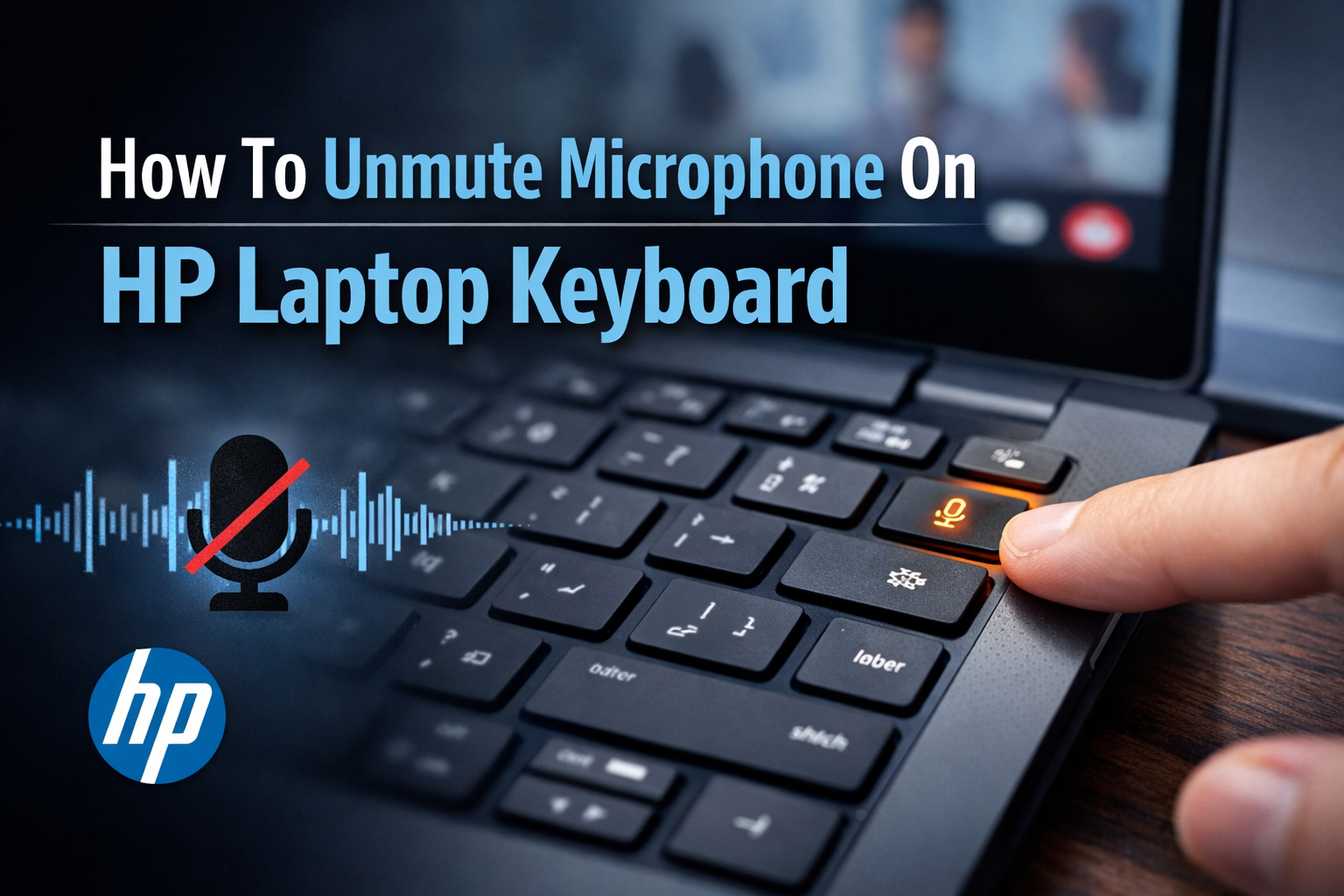
First, the HP microphone mute key (often F8/F9/F10 with a mic icon) can toggle a hardware-level mute in one tap.
Second, apps like Teams, Zoom and Google Meet each have their own in-app mute button and shortcuts.
Third, Windows 11/10 can mute or disable the mic in Settings or the classic Recording tab, even if the keyboard light is off.
What does the orange light on the HP microphone key mean?
On many HP laptops, an orange/amber light on the mic key means the microphone is muted at the hardware/keyboard level.
Tap the mic key (or Fn + mic key on some HP Envy/ProBook/EliteBook models) to turn the light off and unmute.
If the light stays on and your mic won’t unmute, you’ll need the deeper troubleshooting covered in later sections.
Where is the microphone mute key on an HP laptop keyboard?
On most HP laptops, the microphone mute key is in the top function row (F1–F12) and has a tiny mic icon, sometimes with a slash.
Look near F8 on HP Envy, ProBook and EliteBook, or around F9/F10 on some layouts.
If you can’t see a mic symbol anywhere, your HP notebook PC may rely only on Windows and app controls to turn the mic on or off.
How do you recognise the HP microphone key symbol?
Look for a small microphone icon, often with a diagonal slash through it to show mute/unmute.
It usually sits in the function key row, sharing space with F-keys or other shortcuts.
On some models, it may also have a small LED light that turns orange when the mic is muted.
Which function key controls the microphone on different HP models?
On many HP Envy, HP ProBook and HP EliteBook laptops, the F8 key controls the microphone mute.
Other HP models may use F9 or F10 as the HP laptop microphone unmute key, depending on keyboard layout.
If pressing it doesn’t work alone, try Fn + F8/F9/F10 to toggle the mic.
What if your HP laptop doesn’t have a microphone icon on any key?
If there’s no mic icon on any key, your HP laptop probably doesn’t have a dedicated hp mic mute key.
In that case, you’ll unmute the microphone using Windows 11/10 sound settings and your app’s own mute button.
This still lets you fully control and unmute the microphone on an HP laptop keyboard, just via software instead of a hardware key.
How do you unmute the microphone on an HP laptop using the keyboard key?
To unmute the microphone on an HP laptop keyboard, find the mic mute key (your HP laptop microphone unmute key, usually F8/F9/F10 with a mic icon) and press it once.
If there’s an orange/amber light on the F8 mic key, tap it until the light goes off – that’s how to turn on the microphone on an HP laptop at hardware level.
This works on most HP Envy, HP ProBook, HP EliteBook and HP notebook PCs, including Windows 11 and Windows 10 models.
How do you toggle the HP microphone key to unmute?
Look along the top row for the microphone icon key with a slash – that’s your hp mic mute key for quick mute/unmute.
Press it once (or Fn + F8/F9/F10 on some models) until the orange light on the HP mic key turns off, which means the mic is now active.
Then speak into the mic and watch the Windows input level bar to confirm you’ve successfully unmuted the microphone on your HP laptop.
Do you need to press Fn with the mic key on your HP laptop?
On many HP laptops with Action Keys Mode enabled in BIOS, the mic mute key works with a single tap – no Fn needed.
If Action Keys Mode is off, you’ll usually need Fn + F8/F9/F10 to toggle the HP laptop microphone unmute key, especially on some HP Envy and ProBook keyboards.
You can change this behaviour in BIOS → System Configuration → Action Keys Mode if you prefer the opposite style.
What should you check if the HP mic key doesn’t unmute the microphone?
First, if your HP laptop microphone is not working how to unmute it: check Windows 11/10 Sound settings → Input and make sure the mic isn’t muted or disabled.
Next, update HP hotkey drivers / HP System Event Utility using HP Support Assistant, which often fixes hp laptop F8 microphone mute key not working issues.
Finally, restart the laptop and retest; if the hp laptop microphone key light is stuck on orange, move to advanced troubleshooting (drivers, BIOS, or HP support).
How do you unmute the microphone in Windows 11 and 10 if the HP keyboard key doesn’t work?
If your HP mic mute key F8/F9/F10 isn’t working or there’s no mic button on your HP laptop, you can still unmute the mic in Windows 11 and Windows 10.
Use Windows Sound settings or the classic Recording panel to turn the input back on and raise the volume.
This is the best fallback when your HP laptop microphone is not working and you need to know how to unmute without the keyboard key.
How do you unmute the microphone from the Windows 11 taskbar?
On Windows 11 HP laptops, right-click the speaker icon on the taskbar and choose Sound settings.
Under Input, pick your HP laptop microphone and use the Mute/Unmute toggle or move the volume slider above 0.
This is the fastest way for “how to unmute microphone on HP laptop Windows 11” when the mic key does nothing.
How do you unmute the microphone in the classic Sound / Recording panel?
Open Control Panel → Sound → Recording tab, then find your internal microphone / HP mic.
Double-click it, go to the Levels tab, and click the speaker icon to unmute, then set the level to 80–100.
This classic panel works in both Windows 10 and Windows 11 if newer settings screens don’t fix your HP mic issue.
How do you unmute the mic in Windows 10 Settings?
On Windows 10 HP laptops, go to Settings → System → Sound → Input and choose your microphone device.
Make sure the device is not disabled, the input volume is above 0, and test for movement on the input level bar.
If your HP laptop microphone not working how to unmute question persists, combine this with app settings (Teams, Zoom, Meet) for a full check.
How can you tell if your HP laptop microphone is unmuted and working?
To check if your HP laptop microphone is unmuted and working, you need to see if Windows is detecting sound and then listen to a quick test recording.
Use the input level bar in Windows 11/10 Sound settings to confirm your voice is being picked up.
Then record a short test clip so you can hear the actual audio quality from your HP notebook PC mic.
How do you test your microphone level in Windows 11 or 10?
On your HP laptop, go to Settings → System → Sound, select your input device, and look for the input level bar.
Speak normally into the built-in HP mic – if the bar moves, the microphone is unmuted and Windows can hear you.
In Windows 11, you can also use “Test your microphone” / Start test for a quick automatic check.
How do you quickly record a test clip to check audio quality?
Open the built-in Voice Recorder / Sound Recorder app on Windows, or use a Teams test call or similar.
Record a short message using your HP Envy / ProBook / EliteBook microphone, then play it back with headphones or speakers.
If the recording is clear and at a good volume, your HP laptop microphone is properly unmuted and working.
What should you do if the HP microphone key light is stuck on and won’t unmute?
If the HP mic mute key F8/F9/F10 orange light is stuck on, your microphone is muted at keyboard level even if Windows shows it as active.
This often points to a hotkey/driver or BIOS issue rather than a simple in-app mute.
Work through a quick reset, driver update and BIOS check before assuming your HP laptop microphone key is physically faulty.
How do you reset the HP mic key if the orange light stays on?
First, restart your HP laptop, then wait until Windows 11/10 has fully loaded.
Tap the mic mute key once (and if nothing happens, try Fn + mic key) and watch if the orange/amber light goes off.
If the hp laptop microphone key light is stuck, move on to updating drivers and HP utilities.
How do you fix HP mic key issues with drivers and HP utilities?
Open HP Support Assistant or visit HP’s support page and update the HP System Event Utility / hotkey driver for your model.
Outdated hotkey software is a common cause of hp laptop F8 microphone mute key not working or lights not syncing with Windows.
After updating, restart your HP Envy/ProBook/EliteBook and test the hp mic mute key again.
How can BIOS settings affect your HP microphone function key?
On startup, press F10 to enter HP BIOS, then go to System Configuration → Action Keys Mode.
Use F9 to load defaults, then F10 to save and exit, which often clears weird function key behaviour.
Incorrect Action Keys Mode settings can stop the HP laptop microphone unmute key from toggling correctly.
When should you contact HP support about a stuck mic mute key?
If the hp mic mute key light never changes, your mic stays muted in every app, and drivers/BIOS resets don’t help, suspect hardware.
At that point, contact HP support with your HP model (Envy, ProBook, EliteBook, etc.) for diagnostics or repair options.
A physically faulty mic mute button or LED can’t be fixed by software and may need an HP-authorised technician.
How can you use or create keyboard shortcuts to mute and unmute your mic in Windows?
If you use your HP laptop microphone a lot, keyboard shortcuts are faster than hunting for buttons.
Alongside the HP mic mute key F8/F9/F10, Windows 11 and tools like PowerToys let you create global mic mute hotkeys.
You can also rely on app-specific shortcuts in Teams, Zoom and Meet so you’re always one key combo away from mute/unmute.
How do you use the Windows 11 Win + Alt + K shortcut to mute your mic?
On Windows 11, Win + Alt + K is a global microphone mute toggle that works in supported apps (originally Microsoft Teams, now more widely used).
Pressing this combo mutes or unmutes your active input device, even if your HP laptop microphone unmute key isn’t handy.
It’s a great backup when you’re screen sharing or presenting and need a quick, OS-level mic mute.
How can you create a custom mic mute/unmute hotkey with Microsoft PowerToys or third-party tools?
Install Microsoft PowerToys and enable Video Conference Mute to set your own system-wide mic mute/unmute shortcut.
Third-party tools like MicMute can also create a dedicated hotkey that toggles your HP notebook PC microphone, regardless of the app.
These are ideal if your hp mic mute key is unreliable or your HP laptop doesn’t have a dedicated mic icon key.
When should you use app-specific shortcuts instead of HP’s keyboard mic key?
In meetings, app-level shortcuts give you precise control:
- Teams:
Ctrl + Shift + Mto mute/unmute - Zoom:
Alt + Ato mute/unmute - Google Meet:
Ctrl + Dto toggle the mic
Use these when your HP laptop microphone key light is off (mic allowed at system level) but you only want to mute yourself inside that call, not everywhere in Windows.
How can you stop your HP laptop from muting the microphone by mistake?
If your HP laptop microphone keeps muting randomly, it’s often just accidental taps on the HP mic mute key (F8/F9/F10) or app shortcuts.
You can reduce this by changing how you type, using smarter Windows mic privacy controls, and disabling the mic more intentionally when needed.
That way, you don’t have to constantly Google “how to unmute microphone on HP laptop keyboard” mid-meeting.
How do you stop hitting the mic key by accident during calls?
Learn exactly which key is the HP mic mute key on your Envy / ProBook / EliteBook and avoid resting fingers on the top row.
If you never use it, some users remap that F-key with tools like PowerToys or avoid using Fn+F8/F9 in their shortcuts.
You can also rely more on Teams/Zoom/Meet shortcuts (Ctrl+Shift+M, Alt+A, Ctrl+D) and leave the HP hardware mic key alone.
How can you manage mic privacy in Windows without relying only on the HP key?
In Windows 11/10, go to Settings → Privacy & security → Microphone to choose which apps are allowed to use your HP laptop microphone.
You can globally block mic access, or only enable it for trusted apps like Teams, Zoom and your browser.
This gives you strong mic privacy control even if you rarely touch the hp mic mute key F8.
When is it better to disable the microphone completely rather than just mute it?
If you’re in a high-privacy situation (travel, shared office, sensitive work), it can be safer to disable the mic than just mute.
You can disable the device in Device Manager → Audio inputs and outputs or turn off microphone access in Windows privacy settings.
Re-enable it later when needed, so your HP notebook PC mic only works when you explicitly allow it.