

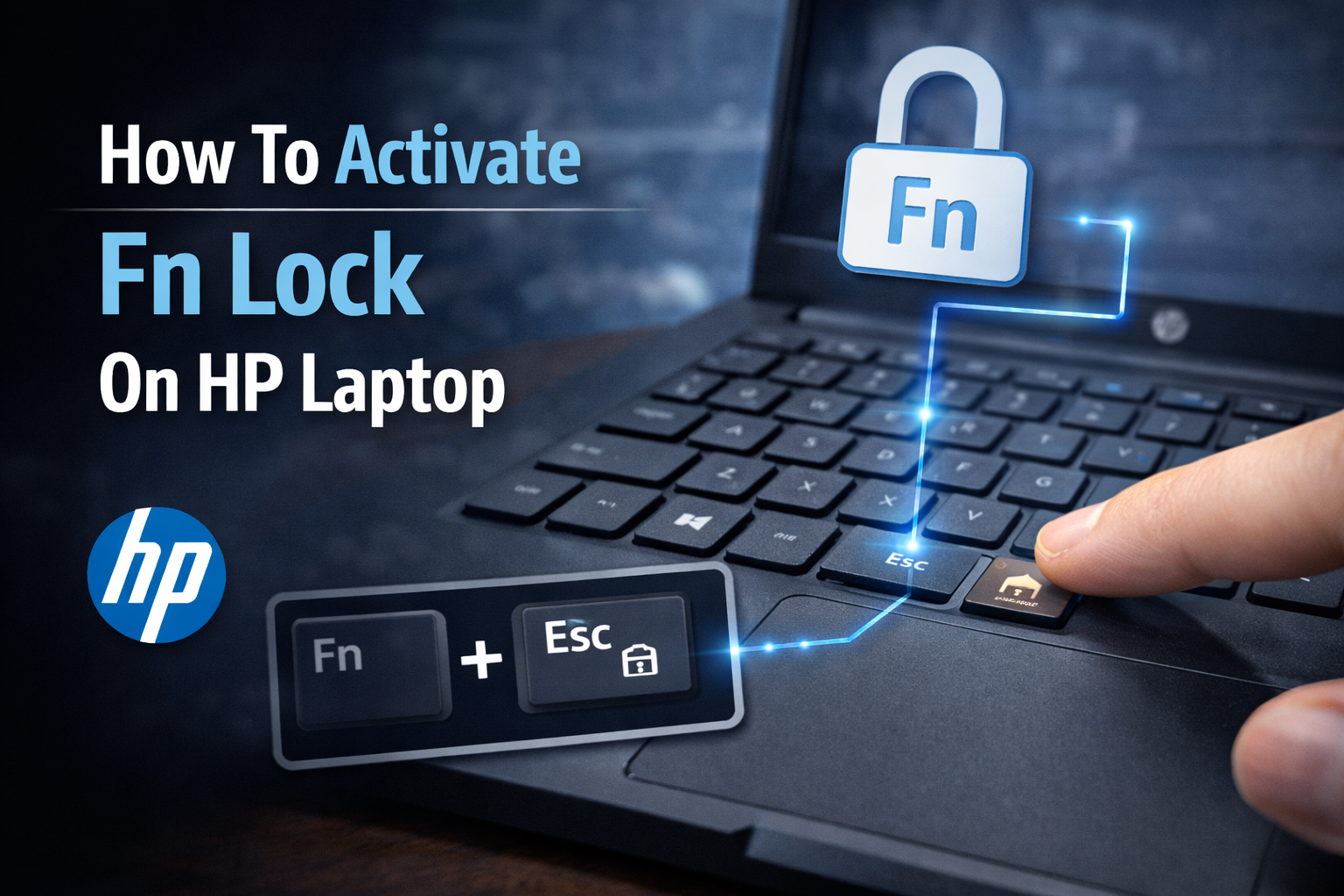
What does Fn Lock do on an HP laptop?
On an HP laptop, Fn Lock controls how the top row of keys (F1–F12) behave.
- With Fn Lock one way, F1–F12 act as media / action keys (volume, brightness, mute, Wi-Fi, etc.) and you hold Fn to get traditional F1–F12.
- With Fn Lock the other way, F1–F12 behave as standard function keys by default, and you hold Fn when you want the media actions.
Understanding this makes it much easier to decide whether to activate Fn Lock on an HP laptop and which mode suits how you actually work.
What is the Fn key and why does HP use Fn Lock?
On an HP keyboard, the Fn key (usually bottom-left) is a modifier key that gives the top row a “second layer” of actions:
- Without Fn Lock (default on many HP notebook PCs):
- Tap F1–F12 → you get action keys (e.g. brightness, volume up/down, keyboard backlight, airplane mode).
- Hold Fn + F-key → you get the traditional function key behaviour (F1 help, F5 refresh, etc.).
- With Fn Lock flipped (via Fn + Esc or BIOS):
- Tap F1–F12 → you get classic function keys by default.
- Hold Fn + F-key → you trigger the media / action icons on the keys instead.
HP uses this system so the same F1–F12 keys can act as either:
- Everyday laptop controls (brightness, volume, wireless), or
- Traditional function keys used by professionals, gamers and power users.
Fn Lock is simply the switch that decides which role they play by default on your HP laptop keyboard.
What’s the difference between Fn Lock and Action Keys Mode on an HP laptop?
This is where a lot of people get confused: Fn Lock and Action Keys Mode are related, but not identical.
Action Keys Mode (in HP BIOS / UEFI):
- Found in BIOS Setup → System Configuration → Action Keys Mode on many HP laptops.
- Controls the default behaviour of the function row at firmware level:
- Enabled → F1–F12 behave as action keys by default, and you hold Fn for classic F-keys.
- Disabled → F1–F12 behave as standard function keys by default, and you hold Fn for action keys.
- This setting applies before Windows even loads, and is often the “baseline” behaviour.
Fn Lock (keyboard toggle, often Fn + Esc on HP):
- On many HP notebooks, pressing Fn + Esc toggles Fn Lock on/off in one tap.
- It effectively flips how the function row behaves within the rules set by Action Keys Mode.
- Think of it as a quick, on-the-fly switch, while Action Keys Mode is the deeper default you set in BIOS.
In practice:
- BIOS Action Keys Mode = “what’s the default way this HP keyboard should work?”
- Fn Lock (Fn + Esc) = “temporarily flip that behaviour right now without going into BIOS.”
That’s why some users searching “how to fn lock HP laptop” end up needing both Fn + Esc and a check of Action Keys Mode if things don’t stick.
When does turning Fn Lock on make your life easier?
Turning Fn Lock on (so F1–F12 act as standard function keys by default) is a big win if you live in apps that rely heavily on those keys:
- Coding and development
- IDEs like Visual Studio Code, IntelliJ or Visual Studio use F-keys for debugging, build, run and step commands.
- With Fn Lock on, you tap F5 to run/debug or F10/F11 to step without holding Fn each time.
- Excel and other productivity tools
- Shortcuts like F2 (edit cell), F4 (repeat), F7 (spell check) or F9 (recalculate) become one-tap actions.
- If you’re in spreadsheets all day, having to press Fn + F2 repeatedly gets old very fast.
- Gaming on an HP laptop
- Many games bind abilities, macros or menus to F1–F12.
- With Fn Lock enabled, your F-keys trigger those binds directly, instead of changing brightness or volume mid-fight.
- Remote tools and browser work
- Shortcuts like F1 help, F5 refresh, F11 full-screen or F-keys in remote desktop clients are all easier when the keys act like “real” function keys.
On the other hand, if you mostly use your HP laptop to watch videos, browse the web and adjust brightness/volume, you may prefer Fn Lock off, so the top row behaves like media keys by default.
Should you turn Fn Lock on or off on your HP laptop?
Whether you activate Fn Lock on an HP laptop or leave it off depends on how you use the F1–F12 keys day to day.
- With Fn Lock ON, the top row behaves like traditional function keys, and you hold Fn for brightness/volume.
- With Fn Lock OFF, the top row behaves like HP action keys (volume, brightness, Wi-Fi), and you hold Fn for F1–F12.
Understanding the trade-off makes it much easier to decide how to change Fn key settings in Windows 11/10 on an HP laptop via Fn + Esc or HP Action Keys Mode in BIOS.
What happens when Fn Lock is turned on?
When you turn on Fn Lock (using the Fn + Esc HP keyboard shortcut or BIOS settings on many models):
- Tap F1–F12 = standard function keys
- F1 = Help in many apps
- F2 = Rename in File Explorer / Excel
- F5 = Refresh in browsers
- F7/F9/F12 = shortcuts in Office, IDEs, games, etc.
- Hold Fn + F-key = action/media keys
- Fn + F2/F3 might change screen brightness
- Fn + F5/F6 might control volume
- Fn + other F-keys might toggle Wi-Fi, keyboard backlight, airplane mode, etc.
This mode is perfect if:
- You use lots of keyboard shortcuts in Excel, coding tools, or professional software.
- You’re a gamer who wants F1–F12 to always behave like true function keys.
- You’re searching “how to fn lock hp laptop” because the F1–F12 function shortcuts are more important to you than quick media controls.
To keep this behaviour permanent, you can enable Fn Lock on an HP keyboard via Action Keys Mode in BIOS (so you don’t have to toggle it every time).
What happens when Fn Lock is turned off?
With Fn Lock turned off, your HP keyboard priority flips:
- Tap F1–F12 = action / media keys
- F-keys adjust brightness, volume, mute, Wi-Fi, screen projection, keyboard backlight, etc.
- This is how many modern HP notebooks ship by default.
- Hold Fn + F-key = traditional F1–F12
- Fn + F4, Fn + F5, etc., send the classic function key signals apps use for shortcuts.
This mode is ideal if:
- You mostly use your HP laptop for web browsing, streaming, video calls and everyday tasks.
- You frequently adjust volume and brightness and rarely use F1–F12 shortcuts.
- You’ve been annoyed that pressing F3 changes something in your app instead of the screen brightness, and you prefer the media-first layout.
If you accidentally turned Fn Lock on and now your F1 F12 function keys not working HP-style (they stopped controlling volume/brightness), you likely want to disable Fn Lock by pressing Fn + Esc again or reversing HP Action Keys Mode in BIOS.
Which Fn setting is best for work, study or gaming?
There’s no one “correct” setting – it’s about matching Fn behaviour to your workflow:
For work and productivity (Office, Excel, browsers, IDEs)
You’ll probably be happier with Fn Lock ON:
- F2 to rename files/cells, F4 to repeat actions, F7 for spell check, F5 to refresh – all one keypress away.
- Developer tools and IDEs (Visual Studio, IntelliJ, VS Code, etc.) rely heavily on F5/F9/F10/F11 for debugging and builds.
- If you keep hitting Fn all day, it’s time to turn on Fn Lock on your HP laptop so function keys are the default.
For students and casual users (media, web, light apps)
You’ll usually want Fn Lock OFF:
- Volume up/down, mute, screen brightness and playback controls stay on single-key shortcuts.
- F1–F12 shortcuts in apps still exist, but you use them less, so pressing Fn + F-key occasionally is fine.
- This suits users who mainly want the action icons on the keys to “just work” when they tap them.
For gaming and advanced setups
Gamers and power users often prefer Fn Lock ON, plus BIOS tweaks if needed:
- Many games map abilities or macros to F1–F12; you don’t want those to adjust brightness mid-match.
- Streaming, macro and automation tools assume F-keys behave consistently, which is easier with Fn Lock enabled.
- If HP Fn key not working in Windows 11 or your F-keys act like media keys in games, switching Fn Lock on (and checking hp Action Keys Mode) usually fixes it.
How do you activate Fn Lock on an HP laptop using the keyboard shortcut?
On many HP laptops, the quickest way to enable Fn Lock on the HP keyboard is with the Fn + Esc shortcut.
This combo toggles whether the top row behaves as standard F1–F12 keys or HP action keys (volume, brightness, etc.).
If you’ve searched “how to fn lock HP laptop” or “how to turn on Fn Lock on HP laptop”, this keyboard shortcut is usually your fastest fix.
How do you turn on Fn Lock with Fn + Esc on an HP laptop?
Try this first, as it works on a lot of modern HP notebook PCs:
- Locate the keys
- Find the Fn key in the bottom-left corner of your HP keyboard (often next to Ctrl).
- Find the Esc key in the top-left corner of the keyboard.
- Press the Fn Lock shortcut
- Hold down Fn, then press Esc once (Fn + Esc).
- On some HP keyboards, you’ll see a small Fn Lock icon printed on the Esc key (often a tiny “Fn” with a padlock).
- Test the new behaviour
- Open an app that uses F-keys, for example:
- A browser → press F5 (should refresh the page if Fn Lock is ON).
- Excel → press F2 (should edit the cell if Fn Lock is ON).
- If F1–F12 now act as standard function keys without holding Fn, you’ve successfully turned on Fn Lock.
- Open an app that uses F-keys, for example:
If that worked, you’ve just changed the default behaviour without touching BIOS – exactly what most users want when they ask how to activate Fn Lock on an HP laptop.
How can you tell if Fn Lock is now enabled on your HP keyboard?
You can confirm Fn Lock is active by watching how the keys behave:
- Function-key test (best check)
- Press F1–F12 in apps that use them:
- F1 should open Help in many programs.
- F5 should refresh your browser.
- F2 in Excel/File Explorer should rename items.
- If these shortcuts work without holding Fn, Fn Lock is effectively ON.
- Press F1–F12 in apps that use them:
- Media/action key test
- Tap the keys with volume/brightness icons (e.g. F3/F4, F7/F8):
- If they no longer change brightness/volume on a single press, but do when you press Fn + F-key, Fn Lock is ON.
- If they still change brightness/volume on a single tap, Fn Lock is OFF.
- Tap the keys with volume/brightness icons (e.g. F3/F4, F7/F8):
- Indicator lights / on-screen prompts (some models)
- On certain HP laptops (especially higher-end or business lines), you might see:
- A tiny LED or icon on the Esc key or in the function row toggling on/off.
- A brief on-screen notification when you use the Fn + Esc HP keyboard shortcut.
- On certain HP laptops (especially higher-end or business lines), you might see:
In short:
- Fn Lock enabled → F1–F12 = function keys, Fn + F-keys = media.
- Fn Lock disabled → F1–F12 = media keys, Fn + F-keys = function keys.
What if Fn + Esc doesn’t activate Fn Lock on your HP laptop?
If Fn + Esc does nothing, don’t panic – not every HP keyboard supports the same Fn Lock shortcut:
- Your model may not support Fn Lock via Fn + Esc
- Some older or business HP laptops don’t have a keyboard-level Fn Lock at all.
- On these models, the behaviour is controlled only by HP Action Keys Mode in BIOS/UEFI.
- Hotkey / keyboard drivers might be missing or outdated
- If you’ve recently reinstalled Windows or done a clean setup, the HP hotkey/keyboard driver may not be installed.
- Installing or updating HP hotkey support (via HP Support Assistant or HP’s driver page) can restore Fn + Esc on compatible devices.
- BIOS settings can override the shortcut
- On some HP notebooks, Action Keys Mode in BIOS determines how function keys behave at a deeper level.
- If the BIOS is set a certain way, the Fn Lock toggle might not appear to work until you adjust that setting.
If Fn + Esc doesn’t change anything and your F1 F12 function keys not working HP-style (they’re stuck as media keys or vice versa), the next step is:
Open HP BIOS / UEFI and adjust Action Keys Mode – which we’ll cover in the next section.
That BIOS method is the fallback for how to enable Fn Lock on an HP laptop when the keyboard shortcut alone isn’t enough.
How do you turn on Fn Lock in the BIOS on an HP laptop?
If Fn + Esc doesn’t work on your HP keyboard, or you want a permanent default, you can control Fn behaviour through HP Action Keys Mode in BIOS/UEFI.
Changing this setting tells your HP laptop whether the F1–F12 keys act as media keys or standard function keys by default, effectively acting as a BIOS-level Fn Lock.
This is the go-to solution for “enable Fn Lock HP keyboard” and “change Fn key settings Windows 11 HP” when the shortcut alone isn’t enough.
How do you open HP BIOS / UEFI to change Action Keys Mode?
First, you need to get into the HP BIOS / UEFI settings:
- Shut down your HP laptop completely
- Close all apps and choose Shut down from the Start menu.
- Wait until the device is fully powered off.
- Power on and open the Startup Menu
- Press the power button to turn the laptop on.
- Immediately start tapping Esc repeatedly (about once per second).
- You should see the HP Startup Menu with options like F1 System Info, F2 Diagnostics, F10 BIOS Setup.
- Enter BIOS Setup
- Press F10 on the Startup Menu to open BIOS Setup / Computer Setup.
- Wait a moment for the BIOS/UEFI screen to load – it usually has a blue or black background with text menus.
Once you’re here, you’re in the right place to adjust HP Action Keys Mode and effectively turn Fn Lock on or off at firmware level.
How do you enable Fn Lock by changing Action Keys Mode?
In BIOS, Action Keys Mode controls how the top row behaves by default. The exact wording can vary slightly, but the logic is:
- Action Keys Mode = Enabled
- F1–F12 act as action/media keys by default (brightness, volume, Wi-Fi, etc.).
- You must hold Fn + F1–F12 to get the classic function key actions.
- Action Keys Mode = Disabled
- F1–F12 act as standard function keys by default.
- You must hold Fn + F1–F12 to trigger the action/media icons.
So if you want Fn Lock “ON” in the classic sense (F1–F12 behave like proper function keys by default), you usually want Action Keys Mode set to Disabled.
To change it:
- Navigate to System Configuration
- Use the arrow keys (or trackpad if supported) to move to the System Configuration tab or similar.
- Look for an entry named Action Keys Mode, Action Keys, Fn Key behaviour or Hotkey Mode.
- Change the Action Keys setting
- Highlight Action Keys Mode and press Enter.
- Choose:
- Disabled → F1–F12 are function keys by default (Fn Lock effectively ON).
- Enabled → F1–F12 are action keys by default (Fn Lock effectively OFF).
- Press Enter again to confirm.
- Save changes and exit BIOS
- Press F10 to open the Save & Exit prompt.
- Choose Yes or Save changes and exit.
- The HP laptop will reboot back into Windows with your new Fn behaviour.
After this, test in Windows:
- Press F5 in a browser:
- If it refreshes without Fn, your F-keys now act like standard function keys (ideal if you wanted Fn Lock on).
- If it changes brightness/volume instead, swap the Action Keys Mode the other way.
What should you do if you can’t find Action Keys Mode in your HP BIOS?
Not all HP laptops show the setting in exactly the same place, and a few older or specialist models may label it differently:
- Look for similar wording
- Check under System Configuration, Advanced, or Keyboard sections.
- Possible names include:
- Action Keys Mode
- Hotkey Mode
- Function Key Behaviour
- Fn Key Switch
- Check your specific model’s manual or HP support page
- Search for your exact model name or product number on HP’s support site.
- Look for documentation or a user guide mentioning Action Keys, Fn Lock, or function key behaviour.
- Update BIOS if the laptop is very old
- On some older HP notebook PCs, newer BIOS/UEFI versions add or rename keyboard settings.
- If your BIOS is clearly outdated, consider updating it via HP’s official instructions (carefully – BIOS updates must not be interrupted).
- Accept that some models don’t expose Fn Lock in BIOS
- A few devices, especially certain business or specialist HP lines, may not allow you to change Fn behaviour in firmware.
- On those, you might be limited to whatever combo the keyboard supports (or no Fn Lock at all) and must adapt your workflow accordingly.
If you’ve checked the menus, updated BIOS and still can’t see any related option, it’s worth contacting HP Support or referring to model-specific documentation to confirm how – or if – Fn Lock is supported on your particular HP laptop.
How do you change Fn key behaviour in Windows 11 and 10 on an HP laptop?
A lot of people search “change Fn key settings Windows 11 HP” expecting a simple Windows toggle – but on most HP laptops, Fn Lock and Action Keys Mode are controlled by the keyboard firmware / BIOS, not by Windows itself.
What Windows 11 and Windows 10 do see is simply “this key is F1/F2/…”, regardless of whether you’ve turned Fn Lock on with Fn + Esc or changed HP Action Keys Mode in BIOS.
So the real work is: set Fn behaviour in BIOS or via Fn Lock, then Windows and your apps (Excel, games, browsers) will just respond to the F-keys as normal.
Can you change Fn key settings directly in Windows 11 on HP laptops?
Short answer: usually no – not in core Windows. For most HP notebook PCs:
- Fn key behaviour (Fn Lock, F1–F12 acting as media keys or function keys) is controlled by:
- The Fn + Esc HP keyboard shortcut (where supported).
- The Action Keys Mode / function key options in HP BIOS / UEFI.
- Windows 11 itself doesn’t offer a standard global toggle like “swap Fn and media keys” for HP laptops.
There are a few exceptions and nuances:
- Some vendors expose extra keyboard options inside Windows via their own utilities, but for HP specifically:
- You might see limited options in HP-specific apps, not in generic Windows Settings.
- Third-party tools can remap F-keys, but they don’t truly change Fn Lock – they only reinterpret what Windows receives after the Fn/Action-Keys behaviour has been decided in firmware.
So if you want to enable Fn Lock HP keyboard or flip how your F1 F12 function keys work, your reliable routes are:
- Fn + Esc (if your HP model supports it).
- HP Action Keys Mode in BIOS/UEFI.
Not a Windows 11 toggle.
How does Windows 11 treat function keys and shortcuts once Fn Lock is set?
Once you’ve chosen your Fn behaviour (via Fn Lock or Action Keys Mode), Windows 11 and Windows 10 simply see “F1–F12 pressed” – nothing more, nothing less:
- If Fn Lock is ON / Action Keys Mode is set so F1–F12 are standard function keys:
- Windows receives F1, F2, F3… directly when you tap the top row.
- Apps like browsers, Office, Excel, IDEs and games react with their usual F-key shortcuts (F2 rename, F5 refresh, F1 help, etc.).
- If Fn Lock is OFF / Action Keys Mode set so F1–F12 are media keys:
- Tapping F3 might send “brightness up” instead of F3.
- Holding Fn + F3 then sends a true F3 signal into Windows.
Windows itself doesn’t “know” about your Fn decision – it just responds to whatever the keyboard firmware sends:
- That’s why once you’ve sorted Fn Lock at firmware level, “hp fn key not working Windows 11” issues usually disappear; apps finally see the F-keys you intended.
- And if your F1 F12 function keys not working HP (because they’re acting like media keys), flipping Fn Lock / Action Keys Mode is what changes the behaviour – not a Windows setting.
In summary: set your Fn / Action Keys behaviour first, then Windows and your applications will behave consistently based on that choice.
Are there HP utilities that help manage keyboard settings in Windows?
While core Fn behaviour is in firmware, HP utilities and drivers still matter for making the HP keyboard and function keys work correctly in Windows 11 and 10:
- HP Hotkey / Keyboard drivers
- These drivers tell Windows how to handle HP-specific keys (brightness, audio mute, Wi-Fi toggle, keyboard backlight, etc.).
- If they’re missing or outdated, you may find that:
- Media icons on F1–F12 do nothing.
- Fn + Esc doesn’t toggle Fn Lock on models that normally support it.
- Fix: go to the HP support website, enter your serial or product number, and install the latest keyboard/hotkey driver for your model.
- HP Support Assistant
- HP’s own maintenance app can:
- Detect your HP notebook PC model.
- Offer driver and BIOS updates, including hotkey/keyboard-related updates.
- Running updates from here often fixes weird Fn key / F1–F12 issues after a Windows reinstall or upgrade.
- HP’s own maintenance app can:
- Other HP utilities (model-dependent)
- Some gaming or business lines (e.g. HP OMEN, certain ProBook / EliteBook models) may include extra keyboard or hotkey control panels.
- These can expose options for lighting, macros or key behaviour, but they still rely on the underlying BIOS Fn logic.
So, while you can’t usually switch Fn Lock purely in Windows Settings, you should:
- Set Fn Lock / Action Keys Mode how you want (Fn + Esc, BIOS).
- Ensure HP hotkey drivers and BIOS are up to date via HP Support Assistant / HP’s driver page.
Do both and you’ll solve most real-world “Fn key not working on HP laptop Windows 11/10” problems and get predictable function key behaviour across your apps.
Why might Fn Lock not work properly on your HP laptop?
If Fn Lock isn’t working on your HP laptop – maybe Fn + Esc does nothing, or your F1–F12 keys are still acting like media keys – the problem is usually a mix of model limitations, BIOS settings or missing hotkey drivers.
Before you assume something’s broken, it’s worth checking whether your specific HP notebook PC actually supports Fn Lock, whether HP Action Keys Mode is set correctly, and whether Windows has the right keyboard/hotkey drivers installed.
This section is aimed at typical “fn lock not working hp” and “hp fn key not working Windows 11” scenarios.
What if Fn + Esc does nothing on your HP laptop?
If pressing Fn + Esc doesn’t toggle Fn Lock, there are a few common reasons:
- Your HP model may not support the Fn + Esc shortcut
- Not all HP keyboards have a Fn Lock implemented at hardware level.
- Many newer Pavilion/Envy/consumer models use Fn + Esc as an Fn Lock toggle, but some older or business lines (ProBook/EliteBook/OMEN variants) may rely purely on BIOS Action Keys Mode.
- If there is no little Fn Lock icon on the Esc key and nothing changes after multiple tries, your device may not use this combo.
- Hotkey / keyboard drivers might be missing or outdated
- If you’ve reinstalled Windows 10/11 or upgraded, the HP hotkey/keyboard drivers may not be fully installed.
- Symptoms include:
- Fn + Esc not toggling anything.
- Brightness/volume icons on F-keys doing nothing.
- Fix: go to HP’s driver page for your exact model and install/update the hotkey/keyboard or “HP System Event Utility” package.
- HP Action Keys Mode in BIOS may be overriding how things behave
- If Action Keys Mode is set a certain way, your F-keys might already behave as action keys or function keys regardless of Fn + Esc.
- On some models, the BIOS decision takes priority, and Fn + Esc is either disabled or limited.
- Check BIOS (Esc → F10 → System Configuration) and adjust Action Keys Mode so it matches how you want Fn Lock to behave.
- You’re testing in the wrong context
- Remember: Fn Lock changes what F1–F12 send, not whether the Fn key itself works.
- To test it properly, open an app that uses F-keys (browser → F5, Excel → F2, etc.) and see if they behave differently before and after Fn + Esc.
- If your only test is “does brightness change on F3?” you might misinterpret the result, so always test both media icons and normal F-key actions.
If none of that helps, treat Fn + Esc as unsupported on your device and move on to controlling Fn behaviour via HP Action Keys Mode in BIOS instead.
Why are your function keys still acting like media keys after changing BIOS settings?
Sometimes you go into BIOS, change Action Keys Mode, save and exit – and yet F1–F12 still behave like media keys once Windows 11 boots. Common causes:
- The BIOS change wasn’t actually saved
- On HP laptops, changing Action Keys Mode isn’t enough; you must press F10 to Save changes and exit.
- If you simply exit with Esc or close the lid, the setting can revert.
- Re-enter BIOS (Esc → F10), confirm Action Keys Mode’s current value, and then save and exit with F10.
- You need a full shutdown, not just a fast restart
- With Windows 10/11 “Fast Startup”, some low-level settings don’t fully reload on a quick reboot.
- After changing Action Keys Mode, do a full shutdown:
- Start → Power → Shut down → wait a few seconds → then power on again.
- This forces the system to reload the firmware settings properly.
- Fn Lock is toggling the behaviour back again
- On models where Fn + Esc and Action Keys Mode both exist, they can interact:
- You might disable Action Keys Mode (set F-keys as standard) but then hit Fn + Esc, flipping them back to media behaviour.
- If you’ve just changed BIOS, avoid pressing Fn + Esc until you’ve tested the new default in Windows.
- On models where Fn + Esc and Action Keys Mode both exist, they can interact:
- Per-app behaviour can mislead you
- Some apps overlay their own shortcuts, so F1–F12 might appear to act “wrong” even though Fn Lock is working.
- Always test in a simple context first:
- Browser → F5 should refresh.
- File Explorer / Excel → F2 should rename.
- If those work as expected but a game still uses F3 differently, it’s likely a game setting, not Fn Lock.
If, after all this, your F1 F12 function keys not working HP-style (they’re stubbornly acting as media keys), you’re probably looking at a driver or firmware issue, which is where updates come in.
When should you update drivers or BIOS to fix Fn key issues?
If your Fn Lock, Fn key or action keys behave inconsistently or stop working after a Windows update or reset, it’s a strong sign that drivers or BIOS need attention:
- Update HP keyboard / hotkey drivers
- Visit HP’s official support site and enter your HP serial number or product number.
- Look for downloads labelled Hotkey Support, Keyboard driver, HP System Event Utility, or similar.
- Install these and restart – they restore proper communication between Fn, F1–F12 and Windows 11/10.
- Update HP BIOS / UEFI (carefully)
- If your BIOS is very old, it might not expose Action Keys Mode properly or may have bugs around Fn key handling.
- Download the latest BIOS for your exact model from HP, read the instructions, and update only while plugged into mains power.
- After updating, recheck Action Keys Mode and test Fn Lock again.
- Reinstall HP utilities if you’ve done a clean Windows install
- On a clean Windows 11 install, the system might be missing HP-specific utilities that fine-tune keyboard behaviour.
- Installing HP Support Assistant can help find and install any missing HP components automatically.
- Contact HP if firmware/drivers don’t fix it
- If, after updates, you still see hp fn key not working Windows 11 quirks, there could be a hardware or model-specific limitation.
- At that point, HP Support can tell you whether your specific HP notebook PC supports Fn Lock, and what behaviour to expect.
In short, if Fn Lock won’t toggle, Fn + Esc does nothing, or Action Keys Mode changes don’t stick, your checklist is:
- Confirm your model actually supports Fn Lock.
- Double-check BIOS Action Keys Mode and save with F10.
- Perform a full shut down and restart.
- Update HP hotkey/keyboard drivers and BIOS from HP’s support site.
Do those, and you’ll fix the majority of real-world Fn Lock not working on HP laptop problems.
How do you turn Fn Lock off again on an HP laptop?
If you’ve turned Fn Lock on and now your F1–F12 keys act like “weird” function keys instead of volume/brightness, you probably want to turn Fn Lock off again.
On many HP laptops you can simply press Fn + Esc to toggle Fn Lock off, or change HP Action Keys Mode in BIOS so the top row goes back to acting as media / action keys by default.
This section is for people searching “how to disable Fn Lock HP laptop” after accidentally flipping it on.
How do you disable Fn Lock with the keyboard shortcut?
On most compatible HP notebook PCs, the same shortcut that turns Fn Lock on also turns it off:
- Find the Fn and Esc keys
- Fn key: bottom-left corner of the HP keyboard (usually next to Ctrl).
- Esc key: top-left corner, sometimes with a tiny Fn Lock padlock icon printed on it.
- Press the Fn Lock toggle
- Hold down Fn, then press Esc once (Fn + Esc).
- Release both keys – there’s no need to hold them.
- Test the key behaviour
- Tap the volume or brightness keys (e.g. F3/F4, F7/F8):
- If they now adjust brightness/volume with a single press, Fn Lock is OFF.
- Test a function shortcut:
- In a browser, press F5 – if it no longer refreshes the page unless you hold Fn + F5, Fn Lock is OFF.
- Tap the volume or brightness keys (e.g. F3/F4, F7/F8):
When Fn Lock is disabled:
- F1–F12 = media / action keys (brightness, volume, mute, Wi-Fi, keyboard backlight).
- Fn + F1–F12 = classic function keys (F1 help, F5 refresh, F2 rename, etc.).
If that’s the behaviour you want, you’ve successfully turned off Fn Lock on your HP laptop.
How do you turn off Fn Lock using Action Keys Mode in BIOS?
If Fn + Esc doesn’t work on your model, or you want to change the default behaviour for everyone using the laptop, you can disable Fn Lock at firmware level via Action Keys Mode in BIOS.
- Open HP BIOS / UEFI
- Shut down your HP laptop completely.
- Turn it back on and immediately tap Esc repeatedly until the Startup Menu appears.
- Press F10 to enter BIOS Setup.
- Find the Action Keys / Fn setting
- In BIOS, go to the System Configuration tab (or similar).
- Look for Action Keys Mode, Hotkey Mode, Function Key Behaviour or Fn Key Switch.
- Set Action Keys Mode for “Fn Lock off” behaviour
- On most HP laptops:
- Enabled → F1–F12 act as action/media keys by default; hold Fn for function keys (Fn Lock effectively OFF).
- Disabled → F1–F12 act as standard function keys by default; hold Fn for media keys (Fn Lock effectively ON).
- To turn Fn Lock off (so the keys work mainly as media controls):
- Set Action Keys Mode to Enabled.
- On most HP laptops:
- Save and restart
- Press F10 to Save changes and exit.
- Allow the HP laptop to restart fully into Windows.
Now, when you tap the top row:
- F1–F12 on their own will control brightness, volume, Wi-Fi, etc.
- Fn + F1–F12 will send classic function key commands into Windows.
That’s the behaviour most people expect when they say they want to disable Fn Lock on an HP laptop.
Which Fn setting should you switch to if you’re sharing the laptop with others?
If you share your HP laptop with family, flatmates or colleagues, it’s worth choosing a Fn setting that works for the least technical user:
- For non-technical / casual users
- Choose Fn Lock OFF / Action Keys Mode Enabled.
- This means a simple tap on the top row changes volume, brightness, keyboard backlight and Wi-Fi, which is what most people expect.
- You can show power users how to hold Fn + F-key when they need traditional shortcuts.
- For more technical / power-user households
- If everyone uses Excel shortcuts, programming tools or games, you might prefer Fn Lock ON / Action Keys Mode Disabled.
- Then F1–F12 act as “real” function keys, and people only hold Fn when they want media actions.
Either way, it’s helpful to:
- Explain the Fn + Esc toggle (if your HP model supports it) so users can temporarily flip behaviour without going back into BIOS.
- Mention that if things suddenly feel “wrong” – like F1 F12 function keys not working HP-style – someone has probably just toggled Fn Lock or changed Action Keys Mode.
Choosing the right default and making sure everyone knows the Fn + Esc trick will prevent a lot of confusion about why the function keys or media keys seem to have “stopped working” on your HP laptop.
How can enabling Fn Lock improve productivity and gaming on HP laptops?
Turning Fn Lock on so that F1–F12 behave as standard function keys by default can make a big difference if you rely on keyboard shortcuts.
For productivity apps, coding tools and games, having one-tap F-keys is faster and less frustrating than constantly pressing Fn + F-key.
Once you enable Fn Lock on your HP keyboard (via Fn + Esc or Action Keys Mode), the top row becomes a true power strip for shortcuts and macros.
How does Fn Lock help with keyboard shortcuts in apps?
With Fn Lock enabled, all those classic F-key shortcuts become much easier:
- Office & productivity
- F1: open Help in many programs.
- F2: rename files in File Explorer or edit cells in Excel.
- F5: refresh in browsers and some reports/dashboards.
- F7: spell check in Word and other Office apps.
- F12: “Save As” or advanced save options in some apps.
- Browsers and remote tools
- F5: instant refresh of a web page or dashboard.
- F11: full-screen mode on/off.
- Development / IT tools
- F5 / F9 / F10 / F11: run, debug, step into/over in IDEs like Visual Studio, IntelliJ, VS Code.
- Many debugging and build commands are bound to F-keys by default.
Without Fn Lock, every one of these needs Fn + F-key, slowing you down and making shortcuts harder to remember.
With Fn Lock on, the top row on your HP laptop keyboard acts like a traditional desktop keyboard – exactly what power users expect.
Why do many gamers prefer Fn Lock on?
For gaming, Fn Lock ON is almost always the better choice:
- Direct F-key binds
- Many games use F1–F12 for skills, quick menus, camera views, macros or item bars.
- With Fn Lock enabled, pressing F1–F12 triggers those actions directly, not brightness or volume.
- Avoid accidental media changes mid-game
- With Fn Lock off, a mistimed tap on F2 or F3 can change brightness or volume instead of activating an in-game ability.
- With Fn Lock on, those keys send pure F-key signals, keeping your gameplay consistent.
- Better for esports and keybind-heavy titles
- MOBAs, MMOs and complex RPGs often use F-keys as extra hotbar slots or macro triggers.
- A predictable F1–F12 behaviour is essential when timing and muscle memory matter.
So if you’re gaming on an HP laptop and wondering “how to fn lock HP laptop for games”, enabling Fn Lock (and setting Action Keys Mode appropriately in BIOS) will generally give you more reliable keybinds.
Can you use Fn Lock alongside custom hotkeys or macros?
Yes – in fact, Fn Lock makes customisation easier, because it stabilises what the top row actually sends to Windows:
- Macro software and streaming tools
- Apps like OBS, Streamlabs, macro utilities, and some keyboards/mice software let you bind actions to F1–F12.
- With Fn Lock on, those bindings always receive F1–F12, not random brightness/volume events.
- Per-app hotkeys
- Many programs let you configure their own shortcuts.
- When the top row is reliably sending F1–F12, setting up custom hotkeys is straightforward and consistent across apps.
- Multi-device setups
- If you dock your HP notebook PC or use it with external keyboards, having a consistent F-key behaviour across devices reduces confusion.
- External keyboards usually treat F1–F12 as normal function keys; enabling Fn Lock makes your built-in HP keyboard match that behaviour.
In short: once you’ve activated Fn Lock on your HP laptop, your top row becomes far more predictable.
That predictability makes it much easier to layer on custom hotkeys, macros and game bindings, turning your HP laptop into a more efficient work and play machine.
Do all HP laptops support Fn Lock the same way?
No – Fn Lock isn’t identical across all HP laptops.
Different HP families (Pavilion, Envy, ProBook, EliteBook, OMEN, etc.) can have slightly different Fn layouts, shortcuts and BIOS options.
The general idea – switching between media keys versus standard F1–F12 – is similar, but the exact key combo and settings name can vary by model and generation.
How does Fn Lock differ between HP Pavilion, Envy, ProBook and OMEN laptops?
Here’s a quick overview of how behaviour often differs between major HP lines (exact details still depend on the specific model):
- HP Pavilion & HP Envy (consumer laptops)
- Often support Fn + Esc as the Fn Lock toggle.
- Action Keys Mode in BIOS commonly controls whether F1–F12 are media keys or function keys by default.
- Top row usually has clear brightness, volume, mute and Wi-Fi icons on the F-keys.
- HP ProBook / HP EliteBook (business laptops)
- Layout may be more “traditional”, and Fn Lock might be more tightly tied to BIOS keyboard settings.
- Fn + Esc may or may not be present, or it might behave slightly differently.
- Business firmware sometimes labels the setting as Action Keys Mode, Hotkey Mode or Function Key Behaviour.
- HP OMEN and gaming laptops
- Often have extra gaming features, RGB lighting and additional hotkey/OMEN Control Centre options.
- F-keys may be designed to play nicely with game keybinds, but how Fn Lock works can vary by generation.
- Some models prioritise standard function key behaviour out of the box, others go media-first.
- Older HP notebook PCs
- Certain older models might not have a visible Fn Lock at all, or the Fn behaviour may be fixed with no BIOS option.
- The legends on the keys might look different, and documentation is often needed to be sure.
Because of this variation, two people searching “how to fn lock hp laptop” might need slightly different steps depending on whether they’re on a Pavilion, Envy, ProBook, EliteBook or OMEN.
Where can you check the exact Fn key behaviour for your HP model?
To be 100% sure how Fn Lock and Action Keys work on your specific HP laptop, check resources tailored to that exact device:
- HP model-specific manual / user guide
- Search for your HP model name or product number on HP’s support site.
- Download the User Guide / Maintenance and Service Guide.
- Look for sections labelled Keyboard, Function keys, Action Keys Mode or Hotkeys – they usually explain:
- Which keys can be used as Fn Lock.
- Whether Fn + Esc is supported.
- How to change behaviour in BIOS/UEFI.
- HP Support pages for your device
- On your device’s support page, look at FAQs and documents about “keyboard”, “function keys” or “Fn key not working”.
- These often give step-by-step instructions that match your model, including any quirks.
- HP Support videos
- HP publishes short videos showing how to lock/unlock the Fn key, how to use Action Keys Mode, and how to change keyboard behaviour.
- These are useful if you prefer a visual guide to where the keys and BIOS options are.
- HP Support Assistant
- The app can identify your exact HP notebook PC, link you to the right support content, and suggest driver/BIOS updates that affect hotkeys.
If you’re ever unsure whether your HP supports Fn Lock, or why F1–F12 behave differently than guides suggest, checking the exact manual and support articles for your model is the safest way to confirm how Fn keys are meant to work on your machine.